Buying & Saving Models from the Marketplace
The Marketplace lets you purchase premium models or save free listings directly into your Splatware account. Once acquired, models can be used in the editor, virtual tours, studio tools, or downloaded for external workflows.
This guide covers how to view listing details, use Buy Now or Add to Cart, complete a secure checkout, and access your purchases in./my-library.
Listing Detail View
Each Marketplace item has a dedicated listing page showing price, categories, file size, supported formats, and license information. From here you decide whether to buy immediately or add the item to your cart.
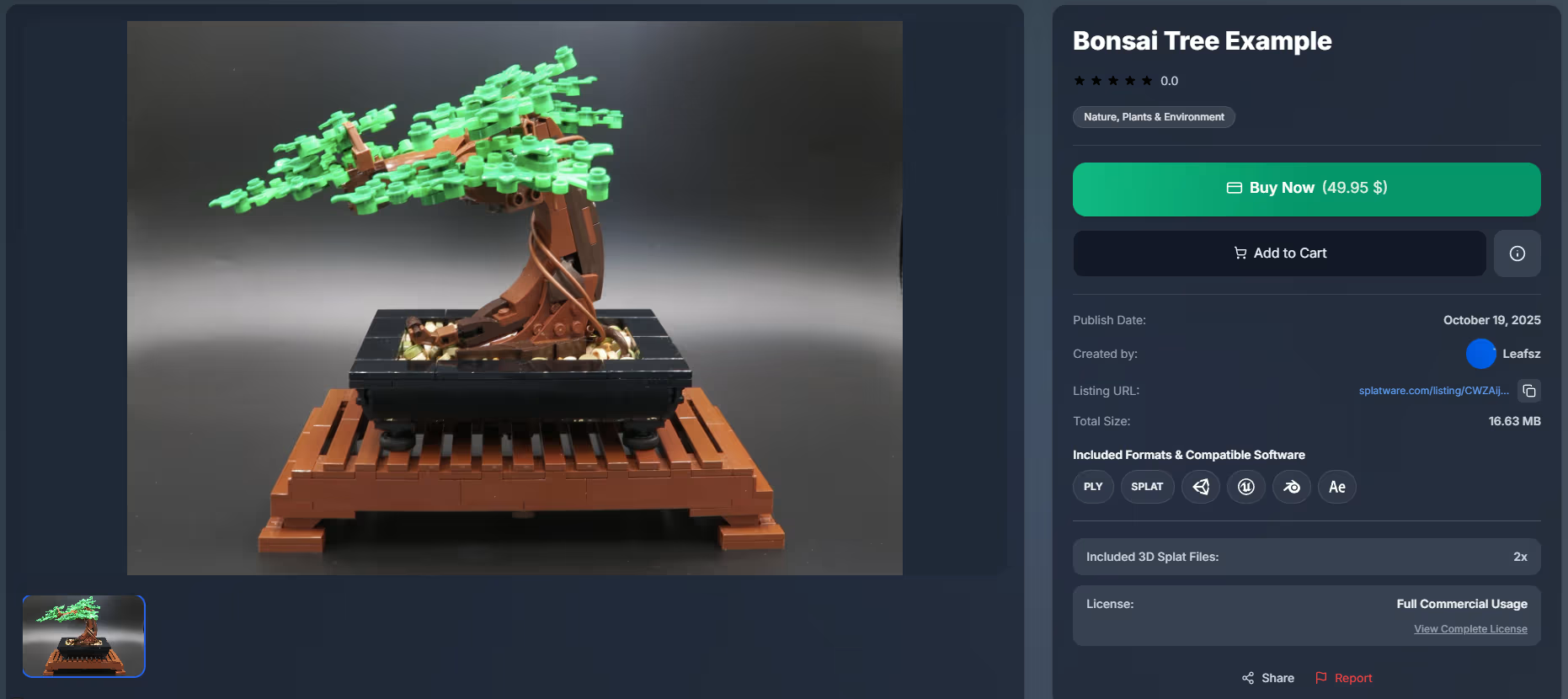
Example listing: Bonsai Tree
A typical listing might look like this:
- Title: Bonsai Tree Example
- Price: 49.95 $ (or Free)
- Category: Nature, Plants & Environment
- Actions: Buy Now, Add to Cart
- Publish Date: October 19, 2025
- Created by: User 1
- Listing URL: splatware.com/listing/CWZ22j3D5Okwtdh0C2bj
- Total size: 16.63 MB
Supported formats and software might include:
- 3D formats: PLY, SPLAT
- Compatible tools: Unity, Unreal, Blender, AfterEffects
- Included Splat files: e.g. 2x 3D Splat models
- License: Full Commercial Usage, with a link to View Complete License
Additional actions like Share and Report are available on the listing page to help keep the marketplace safe and high quality.
Buying & Secure Checkout
When you're ready to acquire a model, you can either purchase it immediately or add it to your cart and check out multiple listings at once.
Buy Now vs. Add to Cart
- Buy Now: takes you directly to checkout with this single item. Ideal for one-off purchases.
- Add to Cart: places the listing into your cart. You can add multiple assets and then complete a single combined checkout.
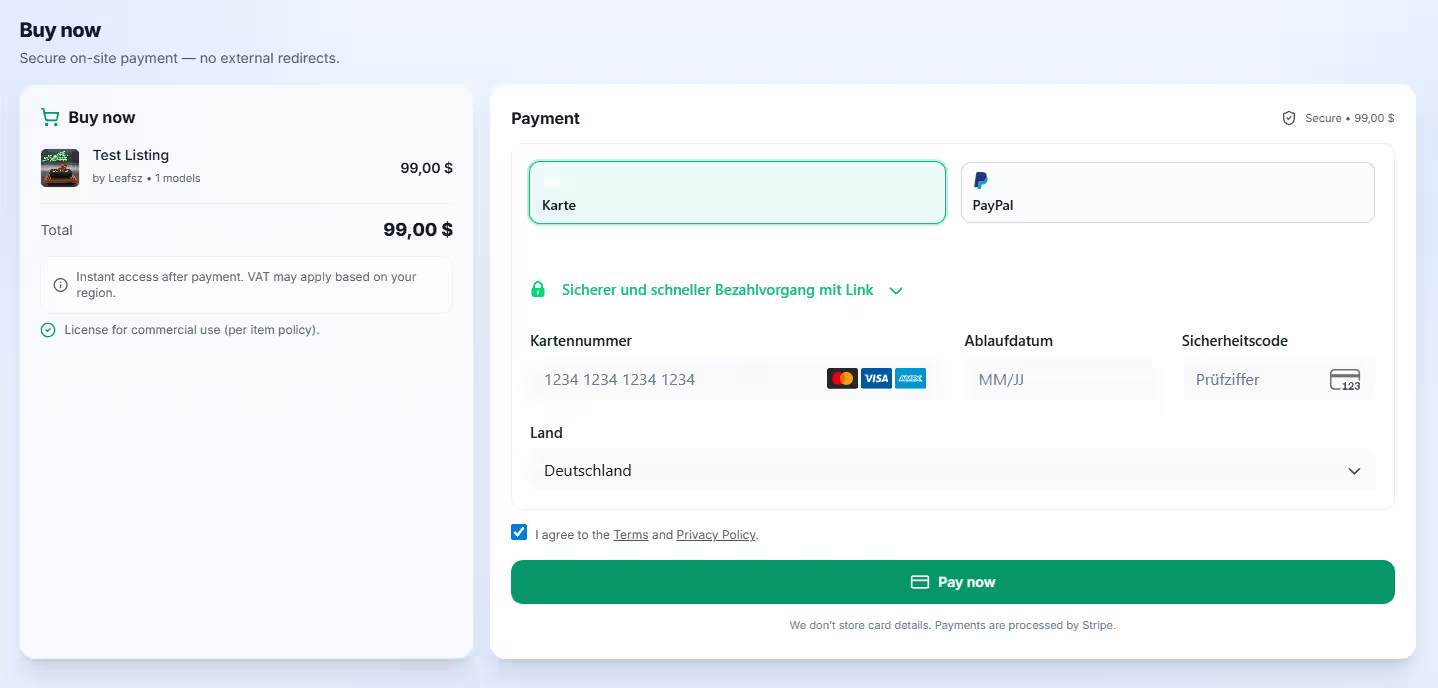
Stripe-secured payment
Checkout is handled via a Stripe-secured payment flow. This provides a modern, audited, and encrypted payment experience, supporting a broad range of methods.
- Credit & debit cards
- Apple Pay
- PayPal
- Amazon Pay
- And other region-specific methods where available
After a successful purchase, you'll see a confirmation screen and receive a receipt. Your new listings are immediately associated with your Splatware account and can be accessed from ./my-library.
Free Listings & Saving to Your Account
Some listings are marked as Free. They don't require payment, but you still need to add them to your account so they show up in your library and stay available.
- Open the listing detail page.
- Click a button Get for Free.
- The listing is instantly registered to your account and appears in My Library.
Free listings behave like purchased items inside your account: you can transfer their models to your profile, use them in tools, and download them for supported workflows according to the license.
Accessing Purchases in My Library
All purchased or saved listings appear under My Library. This page is the central place to review your order history and access the content of each listing.
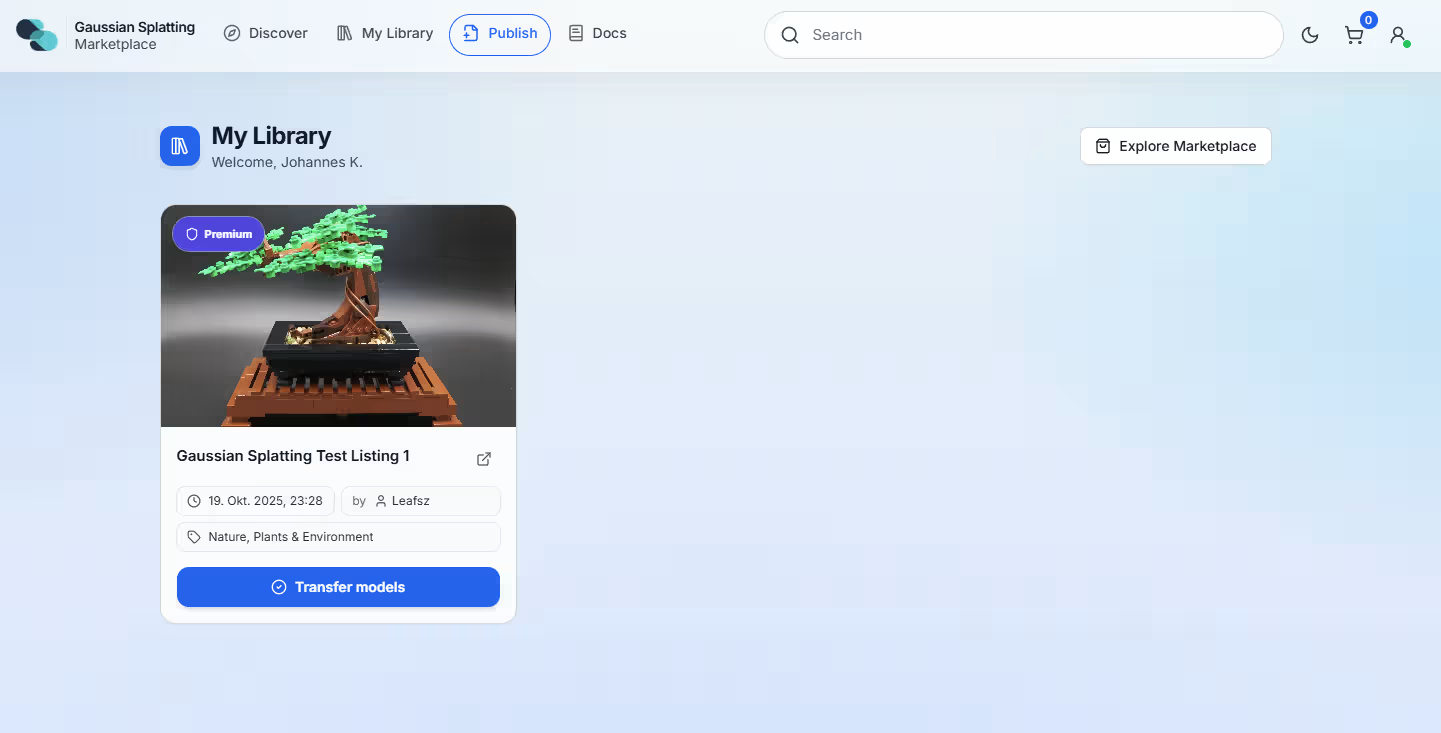
A typical entry might look like this:
- Title: Listing 1
- Purchase date: 19. Oct. 2025, 23:28
- Total amount: 99,00 $
- Seller: User123
- Category: Nature, Plants & Environment
- Actions: View items (1), Transfer to profile
Each library entry represents a single checkout or listing. From here you can open the listing details again, see what's included, and decide which models to transfer.
Transferring Models to Your Profile
To actually work with a purchased model inside Splatware (editor, studio, tours, or downloads), you transfer it from the listing into your personal profile.
How transfer works
- Go to My Library.
- Select the purchase or listing you want to use.
- Click View items to see all included models.
- Use the Transfer to profile action for the models you want to import.
Once transferred, models behave like any other project in your account (accessible at /create):
- Open in the Splat Editor for adjustments.
- Use in the Photo & Video Studio to render images or animations.
- Include in Virtual Tour Studio scenes.
- Download in supported formats for external tools.
You can perform transfers at any time and repeat the operation as needed. Your library keeps a persistent record of all purchases and associated models.
Receipts & Billing
Every successful purchase generates a receipt via the Stripe-secured checkout. This includes the amount, currency, payment method, and a list of items you acquired.
- Receipts are sent to the email associated with your Splatware account or Stripe session.
- You can use them for accounting, reimbursements, or tax documentation.
- For any issues (double charges, refunds, or billing questions), you can contact support with the receipt ID.