Uploading & Preparing Data for Splatware
In this section, you'll learn everything about uploading your source material to Splatware to create photorealistic and ultra-optimized 3D models. Understanding what to upload, best practices, and how to prepare your files is essential for achieving the best results.
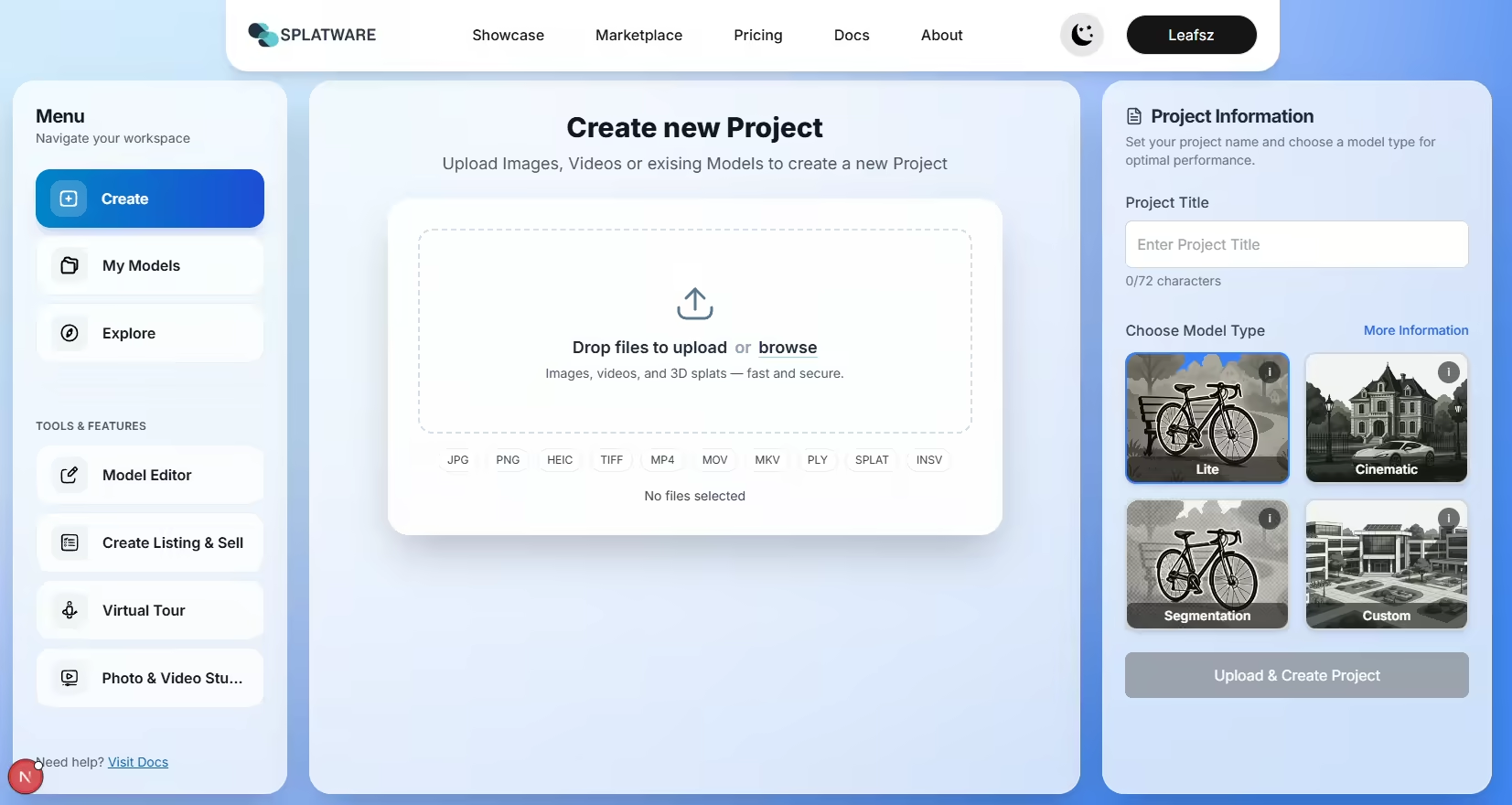
Supported File Formats
Splatware supports a wide range of file formats for both image and video uploads. Existing Gaussian Splatting files can also be uploaded and hosted directly on /capture.
| File Type | Formats Supported |
|---|---|
| Images | JPG, PNG, HEIC |
| Videos | MP4, MOV, MKV, FLV, AVI, 3GP |
| 3D Models | PLY, SPLAT (.splat) |
| 3D Meshes | FBX, GLB |
| 360 Video / Equirectangular | INSV, MP4 (2:1 Aspect Ratio) — supported as settings inside Cinematic and Ultra |
Recommended Minimum Input Data
For best results in model generation, Splatware recommends the following input data volumes:
- Minimum 20+ high-resolution images from multiple angles
- Minimum 20+ seconds of video with good coverage
- Good lighting & stable footage highly recommended
- 360 camera and equirectangular uploads are supported through the Cinematic and Ultra model settings
The more diverse your data angles and perspectives, the better the final 3D output.
Uploading & Data Preparation
Splatware provides a seamless and powerful workflow for uploading imagery and generating high-fidelity 3D Gaussian Splatting models. Whether you're a creator or a studio, the workflow at /create is streamlined for speed, quality, and control.
Upload Steps
- Go to /create
- Drop your images or videos into the uploader (200–1.000 images recommended for image projects)
- Select your AI model: LiteV1, LiteV2, Cinematic, or Ultra
- Enable optional settings such as 360/equirectangular processing or AI segmentation when available for the selected model
- Click "Create Project" to launch training
The system performs automatic Structure-from-Motion, optional AI segmentation, optional 360/equirectangular processing, and optimization, exporting results as lightweight .SPLAT files optimized for real-time rendering.
AI Model Types
LiteV1
Fast and accessible. Ideal for general scenes, quick previews, and casual creators.
- Fast training for lightweight Gaussian Splatting scenes
- Optimized for web previews and simple sharing
- Good default choice for smaller projects
LiteV2
Improved lite workflow with stronger reconstruction quality while staying optimized for speed.
- Balanced speed, quality, and file size
- Useful for products, rooms, objects, and quick capture tests
- Designed for efficient online viewing
Cinematic
High-fidelity Gaussian Splatting generation for polished visual quality, product shots, and presentation-ready scenes.
- Detailed splats with stronger depth fidelity
- Optional AI segmentation for cleaner object-focused captures
- Optional 360/equirectangular processing for compatible uploads
- Best for creators, studios, and professional showcases
Ultra
Maximum-quality training for large, complex, or demanding Gaussian Splatting reconstructions.
- Highest-detail reconstruction workflow
- Optional AI segmentation for background control and object isolation
- Optional 360/equirectangular processing for interiors, venues, and large scenes
- Best for architecture, cultural heritage, virtual tours, and premium scans
Output Format
Every training result is exported in .SPLAT format — an efficient, GPU-native representation that enables real-time rendering with low latency, even for large scenes. Existing .SPLAT files can also be hosted through /capture.
Supported Data Sources
You can upload data captured from:
- Mobile Phones (any camera)
- 360 Cameras (Insta360, GoPro, Ricoh etc.)
- Drones
- DSLR / Professional Cameras
- Existing 3D Scans (PLY or SPLAT)
- Conversion of existing 3D Mesh Models (FBX or GLB)
All uploaded content gets converted for optimal online performance across Web, Mobile, VR & AR platforms.